

Getting Started
Your existing OpenRouter setup is already in a Default workspace. All of your API keys, guardrails, BYOK provider keys, routing policies, presets, plugins, and observability integrations are there. If you don’t need multiple workspaces, keep working as usual; nothing changes. For organizations, all members are automatically added to the Default workspace.Creating a New Workspace
- Go to your home dashboard
- Click the workspace picker and select Create Workspace
- Name your workspace and add a description
Organization admins and account owners can create and delete workspaces.
What’s Scoped to Each Workspace
Each workspace has independent settings for:- API Keys. Every API key lives in a workspace. Members can create their own keys in any workspace they belong to. For organizations, admins can create system keys owned by the workspace rather than an individual user.
- Guardrails. Each workspace has its own guardrail to govern API key and member activity. Workspace guardrails inherit account-level policies and can add more restrictive rules within those constraints.
- BYOK. Bring your own provider keys per workspace, or share the same provider key across multiple workspaces.
- Routing. Configure provider routing per workspace to optimize for cost, latency, throughput, or tool-calling quality.
- Presets. Organize shortcuts for system prompts, model and provider configurations, and request parameters.
- Plugins. Configure default plugin behavior for API requests in each workspace.
- Observability. Connect different observability integrations per workspace, or send traces from all workspaces to the same platform.
- Members. Control which team members have access to each workspace.
- Budgets. Set daily, weekly, monthly, or lifetime spending limits per workspace (Enterprise plan). See the Spend Controls best practices guide for structuring budgets alongside guardrails.
Account Level Settings
Some settings apply globally across all workspaces:- Activity & Logs. View all account activity and logs, with the option to filter by workspace.
- Credits & Billing. Unified billing across all workspaces.
- Organization. Manage organization members, roles, and workspace assignments.
- Management Keys. API keys for administrative actions across all workspaces.
- Privacy. Account-level data policies and provider/model restrictions that apply to all workspaces.
- Preferences. Account preferences that apply to all workspaces.
Deleting the Default Workspace
Organization admins and account owners can delete the Default workspace, but doing so has account-wide effects that deleting any other workspace does not. You can’t undo the deletion from the dashboard or the API.Members no longer land in a workspace
The Default workspace is where org members land by default. After you delete it, there is no default landing workspace, and members aren’t moved to another workspace automatically:- Members whose only workspace was the Default workspace, and members who join the org later, belong to no workspace. They can’t see any workspace’s keys, settings, or activity until an admin adds them to one.
- Members who belong to other workspaces, including Chat and Fusion users, land in one of those workspaces instead. They can pick a different one with the workspace switcher.
- Links and bookmarks to the Default workspace show a “Default workspace deleted” page instead of the workspace.
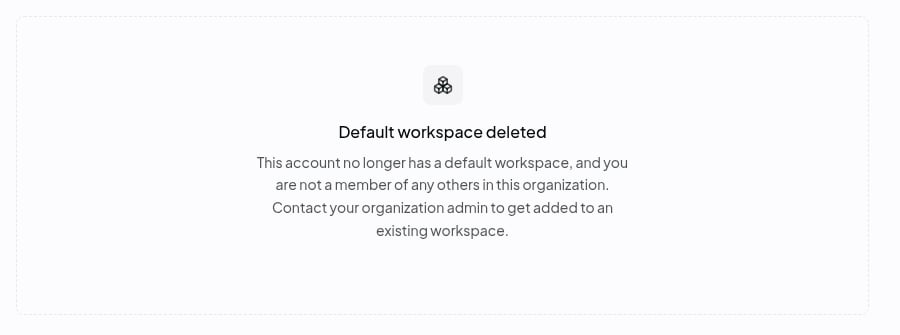
What is deleted or disabled
- Unscoped inference API keys are permanently disabled. Management API keys are not affected.
- Workspace settings are deleted, as with any workspace. This includes the Default workspace’s budgets, guardrails, classifiers, and broadcast destinations.
What changes afterward
- There is no fallback workspace. API requests that leave out
workspace_id, such as creating API keys, BYOK keys, guardrails, or broadcast destinations with a management key, return400with a message to passworkspace_idexplicitly. Update scripts and integrations before you delete. - OAuth flows ask the user to choose a workspace for the new key, because no Default workspace exists to fall back to.
Before you delete
- Create at least one other workspace. You can’t delete your last remaining workspace.
- Move production traffic to keys scoped to another workspace, then confirm nothing still uses unscoped keys.
- Recreate any budgets, guardrails, classifiers, broadcast destinations, BYOK keys, presets, and workspace defaults such as the default model that you want to keep in the destination workspace.
- Add org members to the workspaces they need.
- Delete any interns in the Default workspace. Deletion is blocked while interns are active.
- When deleting through the API, delete any keys scoped to the Default workspace and pass
confirm_default_workspace_deletion=true.
Organization Permissions
- Org admins have admin permissions across all workspaces. Organization admins and account owners can create or delete workspaces. Workspace admins can add or remove member access within their workspace; assigning workspace roles requires an Enterprise plan.
- Org members have member permissions in each workspace they’ve been added to. Members can belong to multiple workspaces, and their API keys in each workspace are governed by that workspace’s settings.
- Workspace admins who aren’t org admins get management rights in their workspace, such as managing members, classifiers, and settings. They have the same read access as members: they can’t view other people’s prompt and response content or classification tags.
- All org members automatically have member access to the Default workspace. Chat and Fusion requests run in the member’s active workspace, which they can change via the workspace switcher. The Default workspace is the initial active workspace.
Frequently Asked Questions
What can my workspace members see about a workspace?
What can my workspace members see about a workspace?
Within a workspace, members can create and manage their own API keys, and view other members and their roles. Members can belong to multiple workspaces. All org members automatically have access to the Default workspace. In Activity and Logs, members see request metadata, such as model, cost, tokens, status, and creator, for every request in the workspaces they belong to, including other members’ requests. Members can view prompt and response content only for requests attributed to them, which includes requests made with API keys they created. Only org admins can view other people’s prompt and response content, see classification tags, and export activity.
What can my organization admins see? What can they edit?
What can my organization admins see? What can they edit?
Org admins have admin permissions across all workspaces: they can view and manage everything in every workspace, including API keys, guardrails, BYOK, routing, presets, plugins, observability, members, and settings. Organization admins and account owners can create or delete workspaces. Only org admins can control members’ access to each workspace. At the account level, org admins manage billing and credits, organization membership and roles, management API keys, and account-level data policies and allowed providers/models.
Can management keys be used across workspaces?
Can management keys be used across workspaces?
Yes. Management keys operate at the account level and can be used to perform administrative actions across all workspaces via the management API.
Can workspaces have different data policies?
Can workspaces have different data policies?
Workspaces inherit account-level data policies and allowed providers/models. Within those constraints, each workspace can set more granular guardrails to further restrict API key and member activity. The account-level policy is the ceiling; individual workspaces can only be more restrictive.
Can I delete the Default workspace?
Can I delete the Default workspace?
Yes, but deleting it permanently disables the account’s unscoped inference API keys and has other account-wide effects. See Deleting the Default workspace before you delete it.
What happens when I remove someone from a workspace?
What happens when I remove someone from a workspace?
When a member is removed from a workspace, they lose access to it. Before removing them, you must first delete any API keys they created in that workspace. Their access to other workspaces is unaffected. Note: all org members retain access to the Default workspace as long as they remain in the org.
Is my Chat/Fusion usage in a workspace?
Is my Chat/Fusion usage in a workspace?
Yes. Chat and Fusion usage runs in your active workspace. It defaults to the Default workspace, and you can switch from the Chat or Fusion sidebar workspace switcher.